






























Start Selling Gift Cards: A Checklist From Sign-Up to Your First Sale
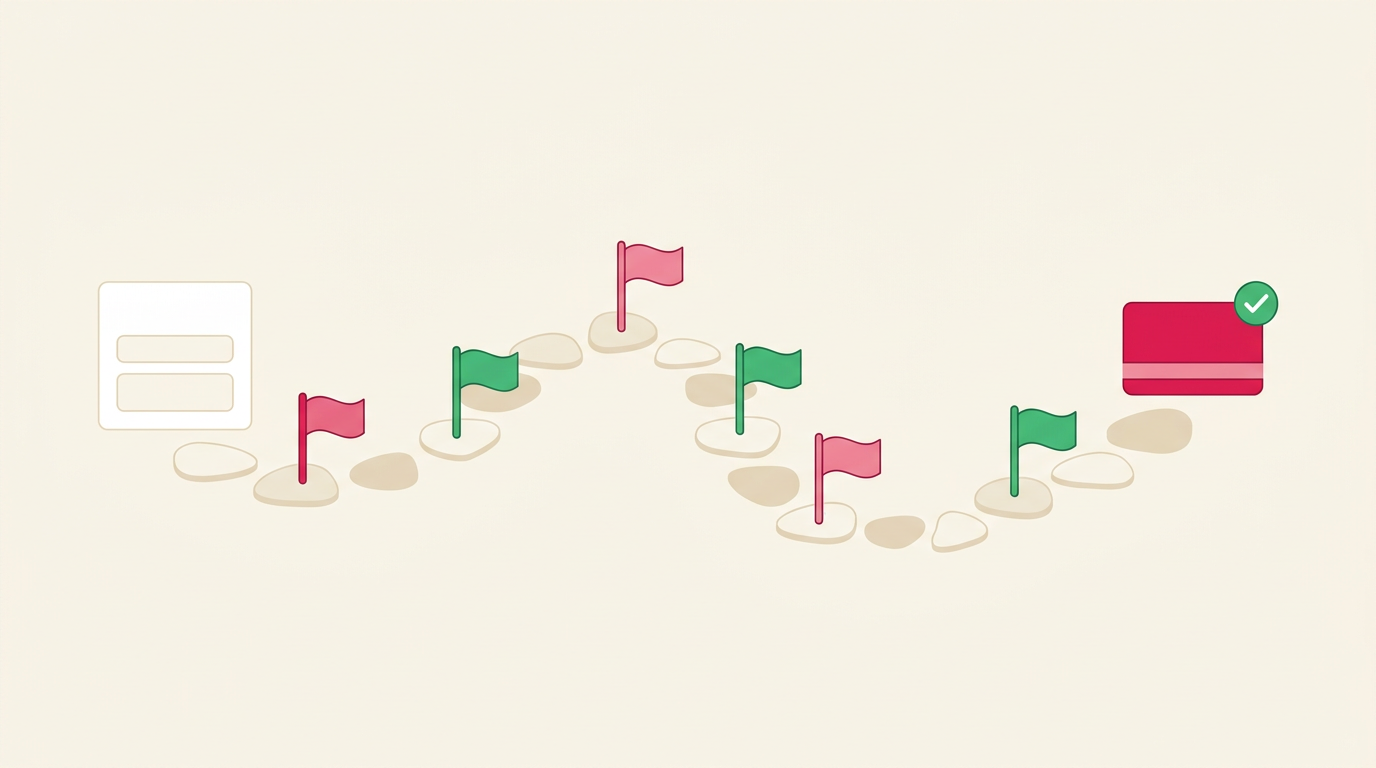
Your six-step checklist
- Account and plan: sign up with a business email address and pick a plan.
- Design and samples: choose or upload a design and request free samples.
- Order module: add the order module to your website and give it a menu item.
- Team and permissions: invite colleagues and give each only the permissions they need.
- Test order: buy a card yourself, check the confirmation and redeem it.
- Go live: make selling visible to customers and measure the results.
What do you do yourself and what does Gifty do?
A clear checklist makes the start easier. Gifty provides the platform, the order module and the handling of online orders. You choose the design, add the module to your site and tell your customers.
| Checklist | What you do | What Gifty does |
|---|---|---|
| Account | Register with a business email address and fill in your company details | Provides the dashboard and the app |
| Design | Pick one in the design tool or upload your own PDF | Designs the card for you if you want |
| Samples | Request them on the pricing page | Sends them as a PDF straight away and by post within 2 working days, with matching packaging |
| Order module | Add the plugin or the code to your website | Provides the module, the integration code and the documentation |
| Online orders | Let your customers order | Sends the card to the recipient by email or post |
| Team | Add staff and set permissions | Limits the number of users per plan |
| Promotion | Menu item, newsletter and social media | Offers promo codes and a Google Analytics integration |
Which parts you can use depends on your plan (Start, Essential or Pro). The full overview is on the pricing page.
Step 1: create an account and pick a plan
You start the checklist on the Gifty dashboard registration page. Use a business email address: free addresses from Gmail, Hotmail, Outlook, Yahoo and iCloud are not accepted. Does your company already use Gifty? Ask an administrator to add you as an employee, so you are linked to the existing account.
Then choose a plan. The three plans differ in the number of users (1, 5 or unlimited), in the kind of onboarding and in whether you can sell physical cards in your shop. You pay a fixed monthly amount plus a rate per gift card. Current amounts are on the pricing page.
- Check under Organisation and Details that your company details and bank account are correct.
- Check under Finance and Membership which plan is active.
Step 2: choose your design and request samples
Under Design in the dashboard you adjust the look of your gift card, wrapping, wallet pass and emails. You can use the design tool or upload your own design as a PDF. If you would rather not do it yourself, Gifty can create the design for you.
Want to see what a card looks like first? Request free, no-obligation samples. You get them in various branding styles as a PDF in your inbox straight away and by post within 2 working days, with matching packaging. If you also sell cards in your shop, a counter display comes with them. The pricing page shows which plan includes it.
Step 3: add the order module to your website
The order module is the checkout where customers pick an amount or package deal, enter the recipient’s details and pay. According to the documentation you can add it to your own website within five minutes. The pages are in Dutch, the English version is under the EN switch.
- WordPress: install the Gifty plugin and enter the integration code. You find it in the dashboard under Order module and Installation. The steps are in the WordPress documentation.
- Other websites: add a small script with your key to the code of your website. The documentation explains this too.
Then choose how visitors open the module: through a menu item, a link, the gift icon or embedded on a page. According to the Gifty documentation you sell the most gift cards with a menu item called “Cadeaubon” in your main menu. The Dutch article Hoe plaats je de Gifty bestelmodule voor de meeste verkoop (in Dutch) lists the pros and cons of every option.
Step 4: invite your team and set permissions
Under Organisation and Employees you invite colleagues. For each employee you choose the permissions:
- Administrator: full access, all other permissions are included.
- Issue gift cards: activate blank cards from the home page.
- Redeem gift cards: accept cards. This permission is always on.
- Finance and Statistics: view reports, invoices and transactions.
- Mark as promotional: flag a card as promotional when issuing it.
Give everyone only what they need. A cashier who only accepts cards is fine with the default Redeem permission. How many employees you can add depends on your plan. As long as Gifty has not verified your account, you can only use business email addresses for new employees.
Step 5: place a test order
Test the whole route before a customer does. Open your website and order a card for a small amount. Go through the process as your customer would:
- Choose an amount or package deal and enter the recipient’s details.
- Pay with one of the enabled payment methods, for example iDEAL or credit card.
- Check the confirmation and whether the card reaches the recipient.
- Redeem the card from the dashboard home page and check that the balance is right.
Also look at how the module appears on your phone. A test order is a real order. Not sure how it is handled or what it costs? Ask Gifty beforehand.
Step 6: go live and tell your customers
Is everything working? Then the menu item is visible and customers can order. Now they have to find it.
- Put the gift card in your menu and on your homepage.
- Mention it in your newsletter and on social media.
- Use a promo code for a first campaign, if your plan includes it.
- Measure your sales with the Google Analytics, Google Tag Manager, Meta Pixel or Google Ads integrations from the documentation.
Mind the timing. In 2025, 28.7% of the gift cards issued through the order module were issued in November and December, and December alone made up 19.5% of the year (Gifty data 2025, excluding test accounts). If you want to join the year-end rush, be live before November.
Common mistakes when following the checklist
- Only a link in the footer: visitors overlook the option, so far fewer cards are sold.
- Registering with a free email address: it is not accepted. Use your company address.
- Making everyone an administrator: give staff only the permissions they need.
- Skipping the test: place an order yourself before you invite customers.
- Starting too late: do not wait until November for your first order.
Frequently asked questions
According to the documentation you add the order module to your site in a few minutes. How long the whole process takes depends on your design, your website and whether you also order physical cards. Samples arrive straight away as a PDF.
For the order module you add code or a plugin to your website. According to the pricing page there is also a direct URL with the order module, for example for campaigns or social media. In your shop you can sell physical cards without a website.
You pay a fixed monthly amount for your plan plus a rate per gift card. Current rates are on the Gifty pricing page.
Can I sell physical gift cards in my shop?
Yes. According to the pricing page, selling physical cards and packaging on location is part of the Essential and Pro plans. You order blank cards in the dashboard under Order.
Usually only Redeem gift cards, which is always on. Give Issue or Administrator only to people who really need it.